Otto Connect
Product pages: Otto Connect for Shopify, Otto Connect for Shopware
Otto Connect for Shopify and Otto Connect for Shopware share one engine. This guide follows the app's own pages in the order you will use them: Settings, Mapping, Dry run, Sync, Needs attention.
Install
Install the app from the Shopify App Store. It asks for products, inventory, locations, orders, fulfillments and customers: products and inventory to publish your assortment, orders and customers to create OTTO orders in your shop, fulfillments to report shipments back.
After installation the Overview shows a four-step checklist: Connect OTTO, Create a mapping, Run a dry run, Switch to live. Each step links to the page where you do it.
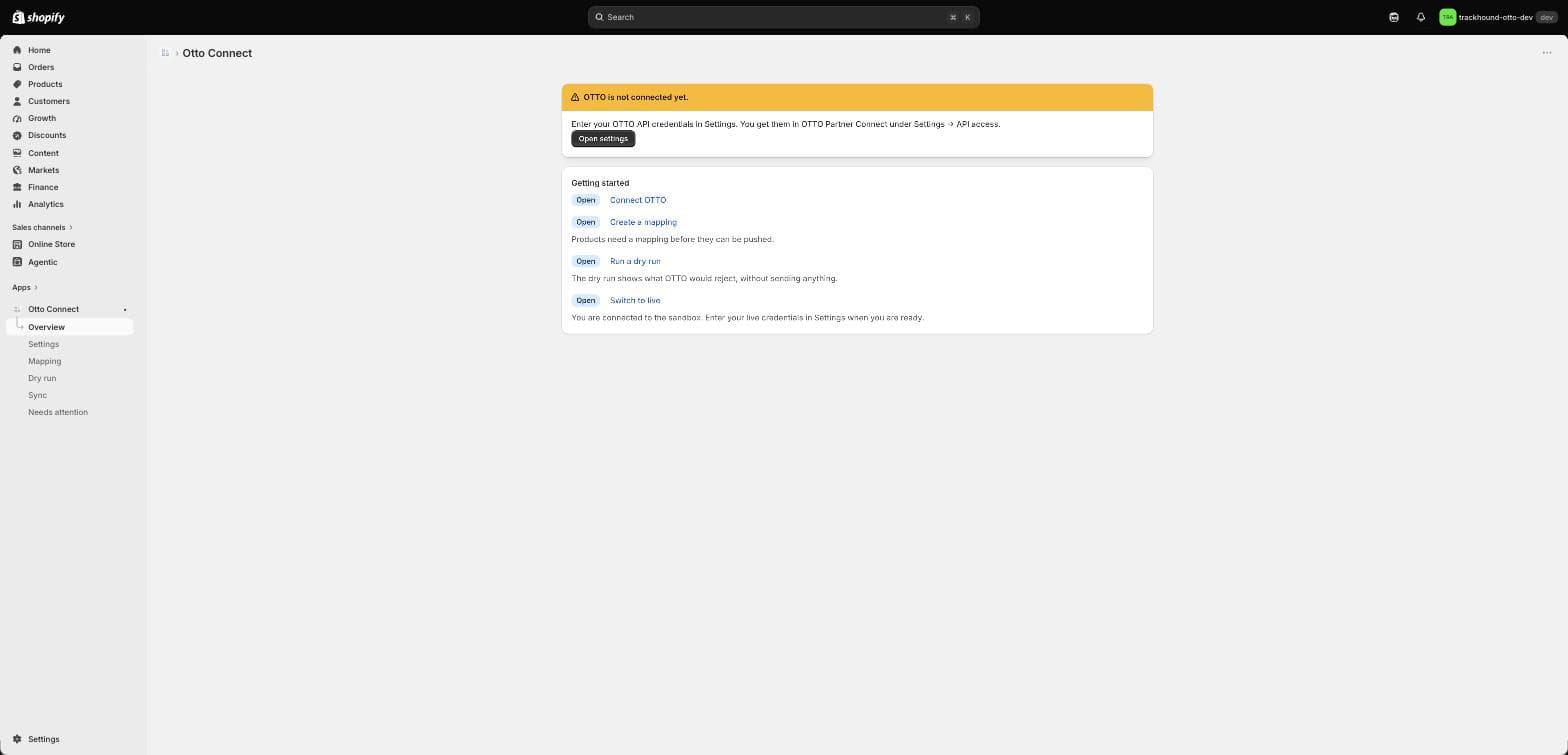
Connect OTTO
You need an active OTTO Market seller account. In OTTO Partner Connect open Settings → API access and create an API client; OTTO shows the client secret only once.
In the app open Settings, choose the environment (Sandbox for testing, Live for real orders), paste client ID and client secret, and save. The secret is stored encrypted and never shown again; leave the field empty on later saves to keep it. Then use Test connection: the app reads OTTO's brand and category lists to prove the credentials work.
Fill the ship-from location (city, postal code, three-letter country code such as DEU) in the same page; OTTO requires it in every shipment confirmation.
Mapping
OTTO needs an EAN, a known brand, an OTTO category with its mandatory attributes and product-safety data on every product. The Mapping page turns your Shopify data into that structure.
General: where the brand comes from (field:vendor, a constant, or a metafield), the default VAT rate, and the default OTTO category for products no rule matches.
Category rules: one rule per Shopify product type, for example product type Jacke → OTTO category Outdoorjacke. Each rule lists attributes as one line per attribute: OTTO attribute = source. A trailing * marks the attribute as required.
Manufacturer: name and address of the manufacturer for the EU General Product Safety Regulation. It is required for every product and is sent with every variant.
Advanced: edit as JSON exposes the full schema, including transforms and fields the form does not show. Saving there replaces the whole mapping.
| Source | Meaning |
|---|---|
option:Farbe | The variant's value of the option named Farbe |
metafield:custom.material | A product or variant metafield by namespace.key |
field:title | A product or variant field: title, vendor, productType, handle, sku, barcode, price |
constant:Ganzjährig | The same fixed text for every variant |
template:{{title}} {{option.Farbe}} | Text built from fields and options |
tagPrefix:material: | The rest of a tag that starts with the prefix, e.g. material:Wolle → Wolle |
Farbe = option:Farbe *
Größe = option:Größe *
Material = metafield:custom.material
Modell = template:{{title}} {{option.Farbe}}
Dry run
The dry run reads your products, applies the mapping and checks the result against OTTO's rules and the live category catalogue, without sending anything. It reports one row per problem with the SKU, the field, an explanation and the next step.
Filter with a Shopify search such as tag:otto to check a subset. Fix the data in Shopify, run again, and push once the result shows no problems.
| Code | What to do |
|---|---|
MAPPING_SKU_MISSING | The variant has no SKU in Shopify. Give every variant a SKU; OTTO needs it as the stable key. |
MAPPING_CATEGORY_UNMATCHED | No category rule matches the product type and no default category is set. Add a rule or a default category in Mapping. |
MAPPING_BRAND_UNRESOLVED | The brand source is empty for this product. Fill the vendor field (or the source you chose) with a brand OTTO knows. |
MAPPING_ATTRIBUTE_MISSING | A required attribute (marked with *) has no value. Fill the option, metafield or field the rule points to. |
MAPPING_ATTRIBUTE_INVALID | A value could not be converted (for example text where OTTO expects a number). Correct the value in Shopify. |
SKU_INVALID / PRODUCT_REFERENCE_INVALID | SKU or product reference is too long or contains control characters. At most 50 printable characters, no leading or trailing spaces. |
SKU_DUPLICATE / EAN_DUPLICATE | Two variants share a SKU or an EAN. Each must be unique across your whole assortment. |
EAN_INVALID | The barcode is not a valid GTIN (length or check digit). Enter the EAN exactly as printed on the product. |
EAN_INTERNAL_RANGE | The EAN starts with 2, which is a shop-internal range. OTTO only accepts officially assigned EANs. |
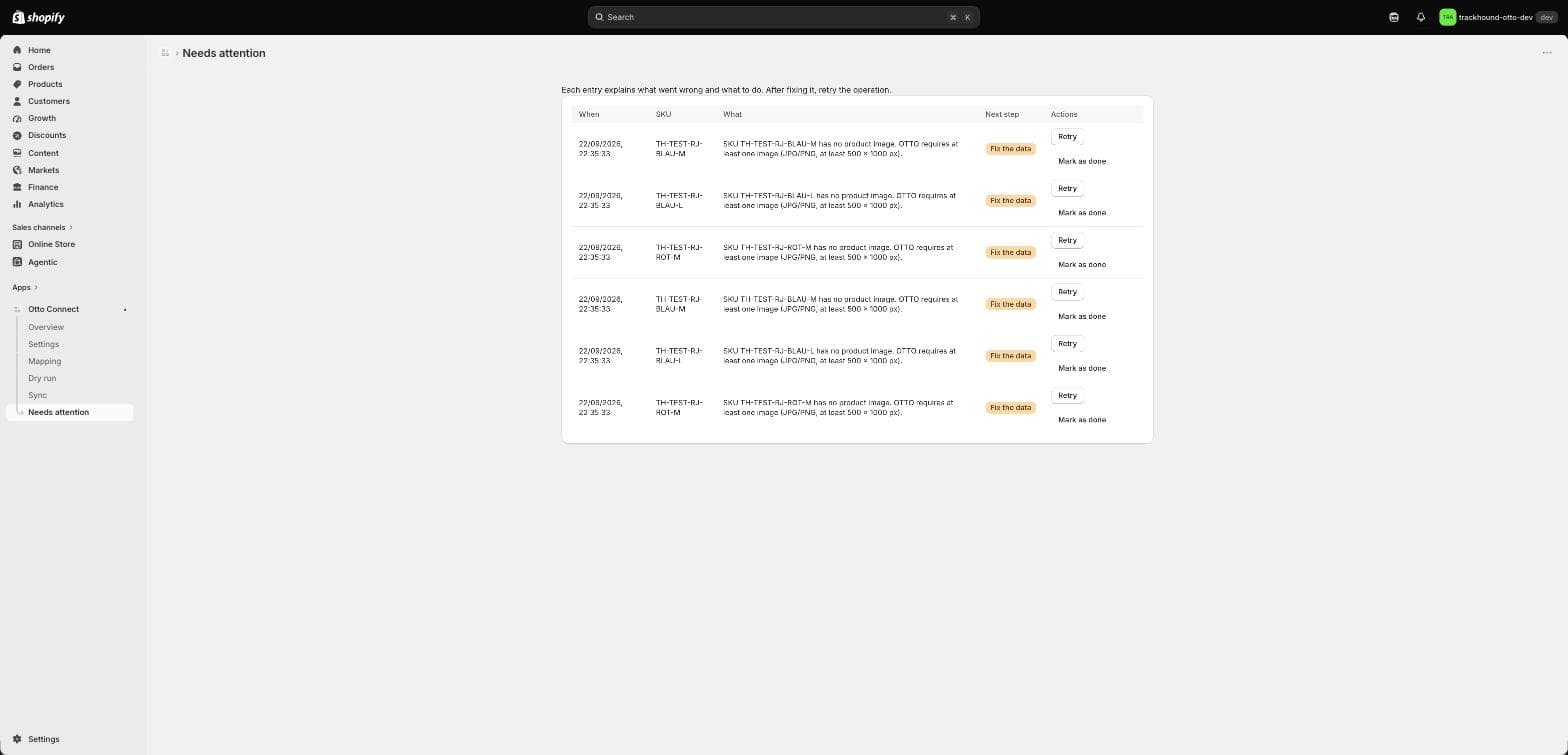
IMAGE_MISSING / IMAGE_TOO_SMALL / IMAGE_TOO_LARGE / IMAGE_URL_INVALID | OTTO needs at least one JPG or PNG per product, at least 500 × 1000 px and at most 4500 px wide, reachable over https. Attach a suitable image in Shopify. |
PRICE_INVALID / CURRENCY_UNSUPPORTED | The price must be greater than 0 and in EUR. Set the store currency to EUR. |
COMPLIANCE_MISSING | The manufacturer address for product safety (GPSR) is missing. Fill the manufacturer block in Mapping. |
BRAND_UNKNOWN / CATEGORY_UNKNOWN | OTTO does not know this brand or category name. Use the names from the OTTO catalogue; the mapping page lists the categories. |
ATTRIBUTE_REQUIRED / ATTRIBUTE_VALUE_NOT_ALLOWED | The OTTO category demands an attribute, or only accepts certain values (for example sizes XS to XL). Map the attribute and use an allowed value. |
IMMUTABLE_FIELD_CHANGED | Product reference or EAN of an SKU already at OTTO changed. OTTO never accepts that: keep the old value or create a new SKU. |
Sync
Orders and returns are fetched automatically because OTTO has no webhooks: new orders every 2 minutes, returns every 10 minutes. Products, stock and prices are pushed when they change in Shopify (via Shopify's webhooks) or when you press a button on the Sync page.
Every run only sends what changed since the last successful run, so repeated runs are cheap and safe. The Log at the bottom lists each run with its result.
Safe mode pauses an inventory sync that would set an unusually large share of your OTTO stock to 0, typically after a faulty import in Shopify. The thresholds are in Settings; if the zeros are correct, tick "Allow setting many items to 0 in this run" and run again.
| Task | Trigger |
|---|---|
Product push | Product created or updated in Shopify; Push products to OTTO |
Price sync | Product updated; Sync prices |
Inventory sync | Product updated; Sync inventory (safe mode applies) |
Order import | Every 2 minutes; Fetch orders |
Return import | Every 10 minutes |
Orders
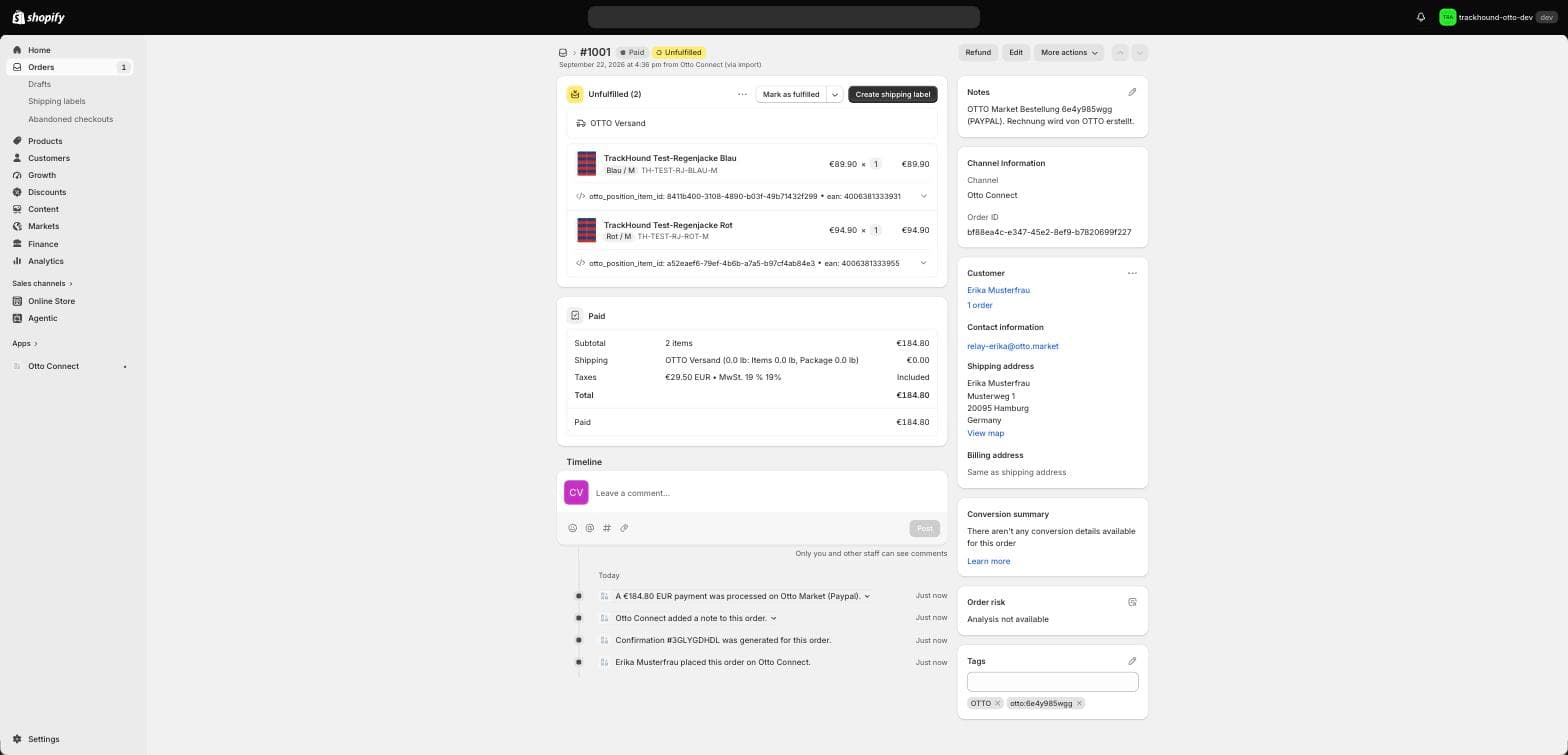
An OTTO order appears in Shopify as a paid order from the channel Otto Connect. The customer's delivery address is the one OTTO transmitted; the e-mail is OTTO's relay address for that customer, so replies stay inside OTTO's system.
Line items carry the OTTO position item id and the EAN as properties, prices are gross with the VAT rate per line, and the order is tagged OTTO and otto:<order number>. A note states the OTTO order number and payment method.
OTTO issues the customer invoice itself. Do not send your own invoice for OTTO orders.
Shipments
Fulfil the order in Shopify as usual and enter the tracking number and carrier. The app confirms the shipment to OTTO within seconds; OTTO then marks the positions as sent and triggers the customer notification.
The carrier is taken from the name you pick in Shopify; the carrier mapping in Settings lets you map your own names. If no name matches, the app recognises the carrier from the tracking number format.
| Tracking number format | Carrier |
|---|---|
1Z + 16 characters | UPS |
00, JD or JJD + 18 or more digits, or 20 digits, or 12 digits | DHL |
H + 19 digits | Hermes |
14 digits | DPD |
11 digits | GLS |
Returns and cancellations
If OTTO cancels positions (for example the customer withdraws before shipment), the app cancels the same line items in Shopify; a partial cancellation is noted on the order and tagged otto:teilstorno. If you cancel an OTTO order in Shopify before shipping, the app cancels the positions at OTTO.
Returns that OTTO announces are imported as return events in your shop. OTTO refunds the customer itself; your task is to accept or reject the return once the parcel arrives.
Needs attention
Every failure that needs a decision from you lands here once, with the SKU, an explanation and a next step: Fix the data, Retry later, Reconnect OTTO or Contact support. After fixing the cause press Retry; entries close automatically when the next run of that SKU succeeds, or mark them as done.
The Overview shows the count and the health of each task (last run, last success) so you see at a glance when something has stalled.